Updated · 5 min read
Setting up an eSIM on an iPhone takes a few minutes. The key is the order: install it at home on Wi-Fi, switch it on in the destination. That way the plan does not start too early and you are online as soon as you land.
Before you start
- An iPhone XS, XR or newer.
- No carrier lock: Settings › General › About should show “No SIM restrictions” next to Carrier Lock.
- A stable Wi-Fi connection and the QR code or installation link from your order email.
Install with a QR code
- Open Settings › Mobile Service (or Cellular) › Add eSIM.
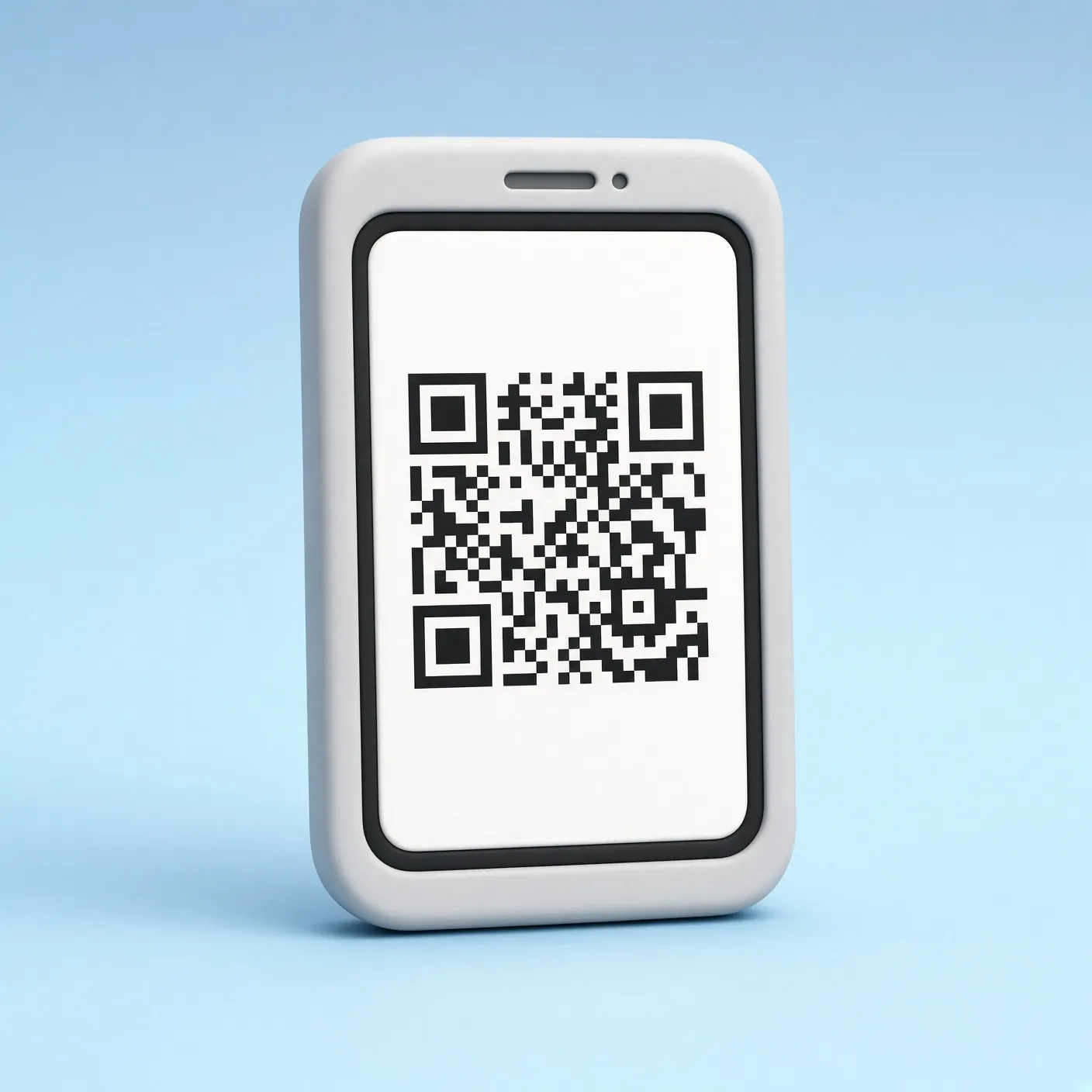
- Choose “Use QR Code” and scan the code from another screen or a printout.
- Give the new line a label such as “Travel”.
- When asked for the default line, keep your home number for calls and iMessage for now.
On iOS 17.4 and later you can also install an eSIM from an installation link without a QR code. Open the link in Safari on the iPhone that will use the eSIM.
Switch it on when you arrive
- Settings › Mobile Service › Mobile Data: select the Travel line.
- Open the Travel line and turn on Data Roaming if the plan instructions say so.
- Open your home line and turn Data Roaming off to avoid charges.
- Turn off “Allow Mobile Data Switching” so the iPhone does not fall back to your home SIM.
No signal after landing?
Turn Airplane Mode on for 30 seconds and off again. Check that the Travel line is turned on and that Data Roaming is enabled for it. If it still does not connect, open the Travel line › Network Selection, turn off Automatic and choose another network from the list.
Frequently asked questions
Can I install the eSIM before my trip?
Yes, and it is recommended. Install it at home on Wi-Fi and only switch mobile data to it in the destination.
Can I scan the QR code with the same iPhone?
Not with the camera from your own screen. Use the installation link, the manual activation code, or show the QR code on another device.
Should I delete the eSIM after the trip?
Only when you no longer need it. A deleted eSIM usually cannot be reinstalled, so keep it if you may top up the plan.